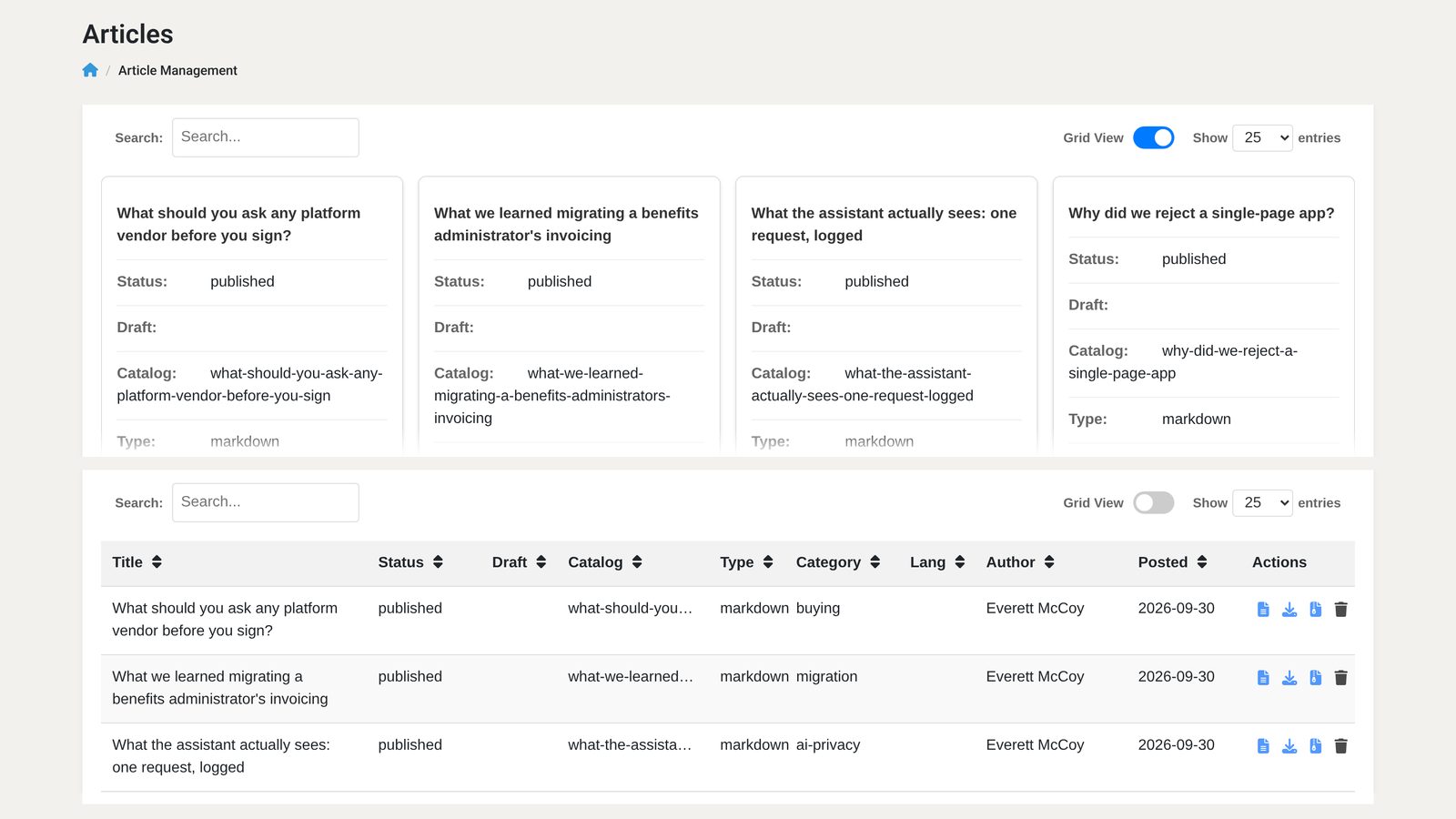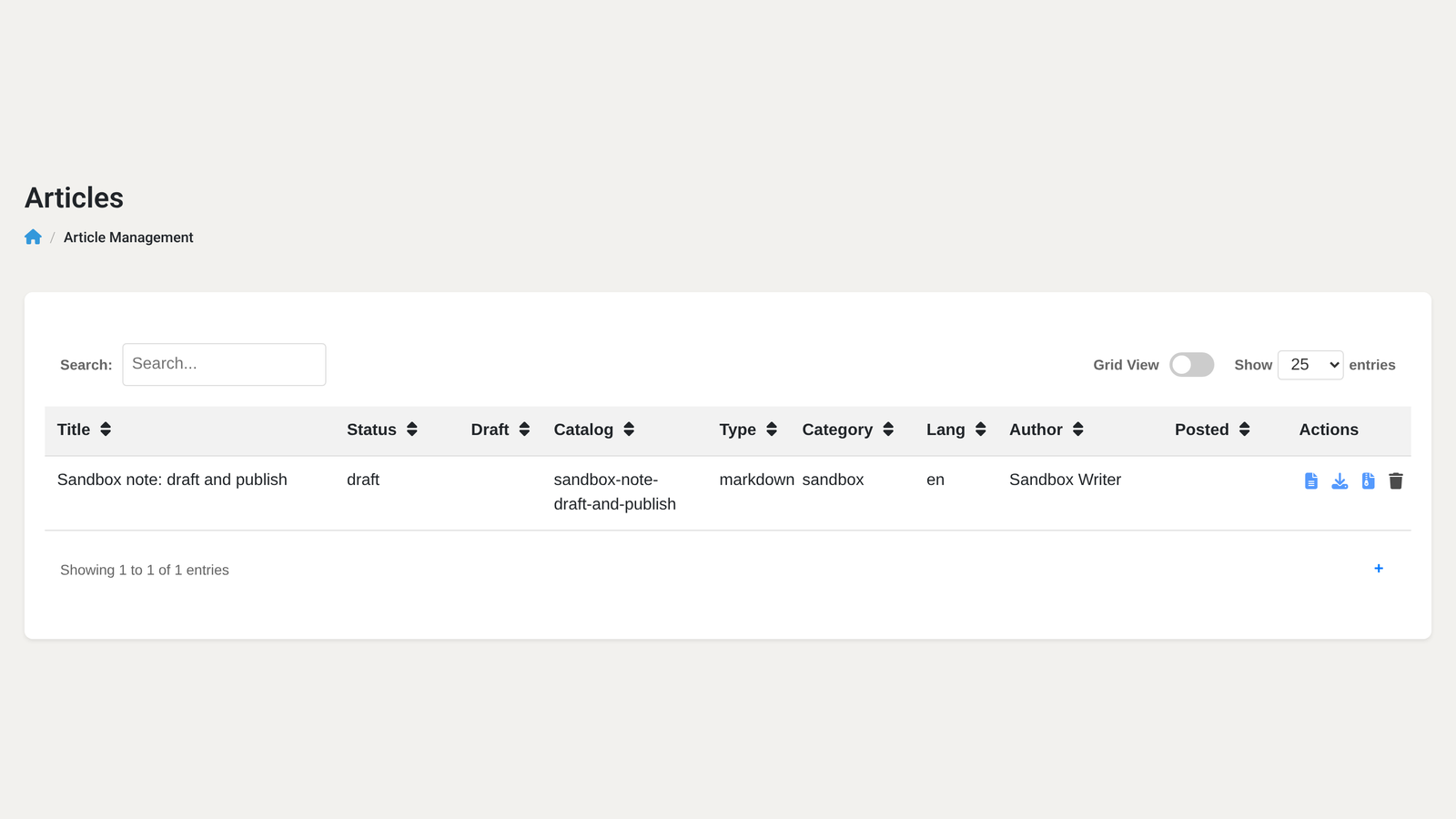
Yes — WebEdify, MACRIM's .NET application platform, ships a reusable content-management surface in its Starter resources, available to WebEdify sites without a separate CMS product. When enabled, articles, media, categories, tags, draft and publish workflow, and public blog routing run in the same application as your dashboards, forms, and transactions. They use the same command pipeline and repository contracts, with content stored through the data profile you configure. The blog you are reading is that CMS operating on itself.
What does "built-in CMS" mean here?
Most teams end up with two systems: an application for business logic and a WordPress or headless CMS for marketing content. Two logins, two deployment stories, and an integration layer that breaks the first time someone wants a form on a page that reads live data.
WebEdify treats content as first-class records — the same way it treats contacts, invoices, or dashboard widgets. An article is a model document with a title, body, slug, summary, category, tags, author, status, and optional hero image. A media record holds uploaded files. Classifiers define your taxonomy. Authors work in admin; visitors see public URLs rendered by templates you control.
That is what Features describes under content management: a full authoring surface, a media library, draft and publish states, and category and tag taxonomy — living in the same application as everything else.
How does a public blog page actually load?
Public blog routing is template-driven, not a separate application tier. A single blog template handles three modes from one URL prefix:
- The feed at
/blog - Category listings at
/blog/category/ - Individual posts at
/blog/
At the top of the template, a resolve command loads the right document or list based on the request path, segment, and query parameters. A CMS tag supplies shared context — the URL prefix and result locator — and an article tag renders one document when the visitor is on a post URL.
<@command name="resolve" group="models/article"
resolve="/blog/the-cms-this-blog-runs-on-ships-with-every-webedify-site" prefix="/blog"
segment="webedify" purpose="blog"
term="" page="1" />
<@cms prefix="/blog" results="$..results">
<@article locator="$..document">
<h1>The CMS this blog runs on ships with every WebEdify site</h1>
<div class="article-body">Yes — WebEdify, MACRIM's .NET application platform, ships a reusable content-management surface in its Starter resources, available to WebEdify sites without a separate CMS product. When enabled, articles, media, categories, tags, draft and publish workflow, and public blog routing run in the same application as your dashboards, forms, and transactions. They use the same command pipeline and repository contracts, with content stored through the data profile you configure. The blog you are reading is that CMS operating on itself.
What does "built-in CMS" mean here?
Most teams end up with two systems: an application for business logic and a WordPress or headless CMS for marketing content. Two logins, two deployment stories, and an integration layer that breaks the first time someone wants a form on a page that reads live data.
WebEdify treats content as first-class records — the same way it treats contacts, invoices, or dashboard widgets. An article is a model document with a title, body, slug, summary, category, tags, author, status, and optional hero image. A media record holds uploaded files. Classifiers define your taxonomy. Authors work in admin; visitors see public URLs rendered by templates you control.
That is what Features describes under content management: a full authoring surface, a media library, draft and publish states, and category and tag taxonomy — living in the same application as everything else.
How does a public blog page actually load?
Public blog routing is template-driven, not a separate application tier. A single blog template handles three modes from one URL prefix:
- The feed at
/blog
- Category listings at
/blog/category/
- Individual posts at
/blog/
At the top of the template, a resolve command loads the right document or list based on the request path, segment, and query parameters. A CMS tag supplies shared context — the URL prefix and result locator — and an article tag renders one document when the visitor is on a post URL.
<@command name="resolve" group="models/article"
resolve="/blog/the-cms-this-blog-runs-on-ships-with-every-webedify-site" prefix="/blog"
segment="webedify" purpose="blog"
term="" page="1" />
<@cms prefix="/blog" results="$..results">
<@article locator="$..document">
<h1>The CMS this blog runs on ships with every WebEdify site</h1>
<div class="article-body">Yes — WebEdify, MACRIM's .NET application platform, ships a reusable content-management surface in its Starter resources, available to WebEdify sites without a separate CMS product. When enabled, articles, media, categories, tags, draft and publish workflow, and public blog routing run in the same application as your dashboards, forms, and transactions. They use the same command pipeline and repository contracts, with content stored through the data profile you configure. The blog you are reading is that CMS operating on itself.
What does "built-in CMS" mean here?
Most teams end up with two systems: an application for business logic and a WordPress or headless CMS for marketing content. Two logins, two deployment stories, and an integration layer that breaks the first time someone wants a form on a page that reads live data.
WebEdify treats content as first-class records — the same way it treats contacts, invoices, or dashboard widgets. An article is a model document with a title, body, slug, summary, category, tags, author, status, and optional hero image. A media record holds uploaded files. Classifiers define your taxonomy. Authors work in admin; visitors see public URLs rendered by templates you control.
That is what Features describes under content management: a full authoring surface, a media library, draft and publish states, and category and tag taxonomy — living in the same application as everything else.
How does a public blog page actually load?
Public blog routing is template-driven, not a separate application tier. A single blog template handles three modes from one URL prefix:
- The feed at
/blog
- Category listings at
/blog/category/
- Individual posts at
/blog/
At the top of the template, a resolve command loads the right document or list based on the request path, segment, and query parameters. A CMS tag supplies shared context — the URL prefix and result locator — and an article tag renders one document when the visitor is on a post URL.
<@command name="resolve" group="models/article"
resolve="/blog/the-cms-this-blog-runs-on-ships-with-every-webedify-site" prefix="/blog"
segment="webedify" purpose="blog"
term="" page="1" />
<@cms prefix="/blog" results="$..results">
<@article locator="$..document">
<h1>The CMS this blog runs on ships with every WebEdify site</h1>
<div class="article-body">Yes — WebEdify, MACRIM's .NET application platform, ships a reusable content-management surface in its Starter resources, available to WebEdify sites without a separate CMS product. When enabled, articles, media, categories, tags, draft and publish workflow, and public blog routing run in the same application as your dashboards, forms, and transactions. They use the same command pipeline and repository contracts, with content stored through the data profile you configure. The blog you are reading is that CMS operating on itself.
What does "built-in CMS" mean here?
Most teams end up with two systems: an application for business logic and a WordPress or headless CMS for marketing content. Two logins, two deployment stories, and an integration layer that breaks the first time someone wants a form on a page that reads live data.
WebEdify treats content as first-class records — the same way it treats contacts, invoices, or dashboard widgets. An article is a model document with a title, body, slug, summary, category, tags, author, status, and optional hero image. A media record holds uploaded files. Classifiers define your taxonomy. Authors work in admin; visitors see public URLs rendered by templates you control.
That is what Features describes under content management: a full authoring surface, a media library, draft and publish states, and category and tag taxonomy — living in the same application as everything else.
How does a public blog page actually load?
Public blog routing is template-driven, not a separate application tier. A single blog template handles three modes from one URL prefix:
- The feed at
/blog
- Category listings at
/blog/category/
- Individual posts at
/blog/
At the top of the template, a resolve command loads the right document or list based on the request path, segment, and query parameters. A CMS tag supplies shared context — the URL prefix and result locator — and an article tag renders one document when the visitor is on a post URL.
<@command name="resolve" group="models/article"
resolve="/blog/the-cms-this-blog-runs-on-ships-with-every-webedify-site" prefix="/blog"
segment="webedify" purpose="blog"
term="" page="1" />
<@cms prefix="/blog" results="$..results">
<@article locator="$..document">
<h1>Blog</h1>
<div class="article-body"></div>
</@article>
</@cms>
Card lists on the feed and category pages use the same result set with a standard each loop — no separate "blog engine" API. When a slug does not match a published article, the CMS layer returns a proper 404 with your site layout, not a blank framework page.
Each article carries its own title and meta description, so SEO fields belong to the content record — not a developer ticket every time marketing rewrites a headline.
Where do authors create and publish content?
Administration ships with the Starter CMS capability. Typical paths:
Path
Purpose
/admin/articlesArticle list and metadata
/admin/articleBody editor for one article
/admin/mediaMedia library and upload
/admin/classifiersCategories, tags, and keywords
Menus group these under Content alongside the public Blog link. Authors with the right roles create a draft, edit the body in a rich or markdown editor, attach media, set category and tags, and move through status until publish.
The save and publish flow is command-driven, like everything else in WebEdify. Saving persists the article record to your configured data profile. Publishing can roll a draft child onto the live parent so in-progress edits do not overwrite what visitors already see. Markdown bodies run through Markdig into rendered HTML; HTML bodies store as-is.
How does the media library work?
Images and files are media records, not loose files dropped into a static folder. Authors upload through /admin/media. Each upload gets an identifier your articles reference — for example, as a primary hero image on a post.
Public templates rewrite media paths to a CDN setting when you configure one, or fall back to a secured file endpoint. Hero images for social sharing and Open Graph tags resolve from the same record, keeping feed cards and article headers consistent.
When you prepare launch content, upload assets through admin and reference them by record id — the pattern this blog uses for product screenshots and article heroes.
How is a blog enabled on a new site?
You do not need a separate CMS deployment. Enabling a public blog on a tenant is configuration:
- Set a blog prefix in application settings (for example
/blog or /learn).
- Add a route pattern so nested paths like
/blog/my-post map to the blog template.
- Optionally overlay the blog template when you need a different public layout or stylesheet.
The generic blog template, article commands, and admin screens ship with the starter dashboard assembly. MACRIM's own dashboard uses the same embedded template with a /blog prefix — proof that tenants can turn blogging on without copying a pile of custom code.
Tenants that need a different public prefix — for example /learn instead of /blog — set the prefix in configuration, adjust the route pattern, and optionally overlay the blog template for marketing layout. The underlying resolve and CMS tags stay the same; only the prefix and skin change.
Why keep CMS inside the application?
Three practical reasons show up on almost every engagement.
One identity model. Authors log into the same admin as operations staff. Role declarations on commands govern who can save, publish, or delete — the same mechanism that protects billing and customer records.
One data pipeline. A blog post can reference live data with the same tags and commands as a dashboard. You are not serializing JSON across a CMS boundary and hoping the schema still matches.
One operational story. Content and transactions share the managed environment, repository contracts, monitoring, and segment model. Version promotion governs the commands and templates that operate on those records; transactional records keep their own lifecycle. Marketing pages inherit the same dedicated environment described on Why WebEdify.
This marketing site uses the same CMS, commands, templates, and model-backed forms delivered in client applications. The publishing workflow is therefore a working example of the platform, not a separate marketing stack.
How can you test the CMS?
If content publishing is part of your requirements — marketing site, knowledge base, release notes, or customer-facing articles — ask for a pilot that includes the admin authoring flow and a public feed on your prefix. You will see draft, publish, and a rendered post in your own environment before you commit to a band on Pricing.
For the architecture behind commands and templates, continue with How it works. For the full differentiator set, see Features.
</div>
</@article>
</@cms>
Card lists on the feed and category pages use the same result set with a standard each loop — no separate "blog engine" API. When a slug does not match a published article, the CMS layer returns a proper 404 with your site layout, not a blank framework page.
Each article carries its own title and meta description, so SEO fields belong to the content record — not a developer ticket every time marketing rewrites a headline.
Where do authors create and publish content?
Administration ships with the Starter CMS capability. Typical paths:
Path
Purpose
/admin/articlesArticle list and metadata
/admin/articleBody editor for one article
/admin/mediaMedia library and upload
/admin/classifiersCategories, tags, and keywords
Menus group these under Content alongside the public Blog link. Authors with the right roles create a draft, edit the body in a rich or markdown editor, attach media, set category and tags, and move through status until publish.
The save and publish flow is command-driven, like everything else in WebEdify. Saving persists the article record to your configured data profile. Publishing can roll a draft child onto the live parent so in-progress edits do not overwrite what visitors already see. Markdown bodies run through Markdig into rendered HTML; HTML bodies store as-is.
How does the media library work?
Images and files are media records, not loose files dropped into a static folder. Authors upload through /admin/media. Each upload gets an identifier your articles reference — for example, as a primary hero image on a post.
Public templates rewrite media paths to a CDN setting when you configure one, or fall back to a secured file endpoint. Hero images for social sharing and Open Graph tags resolve from the same record, keeping feed cards and article headers consistent.
When you prepare launch content, upload assets through admin and reference them by record id — the pattern this blog uses for product screenshots and article heroes.
How is a blog enabled on a new site?
You do not need a separate CMS deployment. Enabling a public blog on a tenant is configuration:
- Set a blog prefix in application settings (for example
/blog or /learn).
- Add a route pattern so nested paths like
/blog/my-post map to the blog template.
- Optionally overlay the blog template when you need a different public layout or stylesheet.
The generic blog template, article commands, and admin screens ship with the starter dashboard assembly. MACRIM's own dashboard uses the same embedded template with a /blog prefix — proof that tenants can turn blogging on without copying a pile of custom code.
Tenants that need a different public prefix — for example /learn instead of /blog — set the prefix in configuration, adjust the route pattern, and optionally overlay the blog template for marketing layout. The underlying resolve and CMS tags stay the same; only the prefix and skin change.
Why keep CMS inside the application?
Three practical reasons show up on almost every engagement.
One identity model. Authors log into the same admin as operations staff. Role declarations on commands govern who can save, publish, or delete — the same mechanism that protects billing and customer records.
One data pipeline. A blog post can reference live data with the same tags and commands as a dashboard. You are not serializing JSON across a CMS boundary and hoping the schema still matches.
One operational story. Content and transactions share the managed environment, repository contracts, monitoring, and segment model. Version promotion governs the commands and templates that operate on those records; transactional records keep their own lifecycle. Marketing pages inherit the same dedicated environment described on Why WebEdify.
This marketing site uses the same CMS, commands, templates, and model-backed forms delivered in client applications. The publishing workflow is therefore a working example of the platform, not a separate marketing stack.
How can you test the CMS?
If content publishing is part of your requirements — marketing site, knowledge base, release notes, or customer-facing articles — ask for a pilot that includes the admin authoring flow and a public feed on your prefix. You will see draft, publish, and a rendered post in your own environment before you commit to a band on Pricing.
For the architecture behind commands and templates, continue with How it works. For the full differentiator set, see Features.
</div>
</@article>
</@cms>
Card lists on the feed and category pages use the same result set with a standard each loop — no separate "blog engine" API. When a slug does not match a published article, the CMS layer returns a proper 404 with your site layout, not a blank framework page.
Each article carries its own title and meta description, so SEO fields belong to the content record — not a developer ticket every time marketing rewrites a headline.
Where do authors create and publish content?
Administration ships with the Starter CMS capability. Typical paths:
Path
Purpose
/admin/articlesArticle list and metadata
/admin/articleBody editor for one article
/admin/mediaMedia library and upload
/admin/classifiersCategories, tags, and keywords
Menus group these under Content alongside the public Blog link. Authors with the right roles create a draft, edit the body in a rich or markdown editor, attach media, set category and tags, and move through status until publish.
The save and publish flow is command-driven, like everything else in WebEdify. Saving persists the article record to your configured data profile. Publishing can roll a draft child onto the live parent so in-progress edits do not overwrite what visitors already see. Markdown bodies run through Markdig into rendered HTML; HTML bodies store as-is.
How does the media library work?
Images and files are media records, not loose files dropped into a static folder. Authors upload through /admin/media. Each upload gets an identifier your articles reference — for example, as a primary hero image on a post.
Public templates rewrite media paths to a CDN setting when you configure one, or fall back to a secured file endpoint. Hero images for social sharing and Open Graph tags resolve from the same record, keeping feed cards and article headers consistent.
When you prepare launch content, upload assets through admin and reference them by record id — the pattern this blog uses for product screenshots and article heroes.
How is a blog enabled on a new site?
You do not need a separate CMS deployment. Enabling a public blog on a tenant is configuration:
- Set a blog prefix in application settings (for example
/blog or /learn).
- Add a route pattern so nested paths like
/blog/my-post map to the blog template.
- Optionally overlay the blog template when you need a different public layout or stylesheet.
The generic blog template, article commands, and admin screens ship with the starter dashboard assembly. MACRIM's own dashboard uses the same embedded template with a /blog prefix — proof that tenants can turn blogging on without copying a pile of custom code.
Tenants that need a different public prefix — for example /learn instead of /blog — set the prefix in configuration, adjust the route pattern, and optionally overlay the blog template for marketing layout. The underlying resolve and CMS tags stay the same; only the prefix and skin change.
Why keep CMS inside the application?
Three practical reasons show up on almost every engagement.
One identity model. Authors log into the same admin as operations staff. Role declarations on commands govern who can save, publish, or delete — the same mechanism that protects billing and customer records.
One data pipeline. A blog post can reference live data with the same tags and commands as a dashboard. You are not serializing JSON across a CMS boundary and hoping the schema still matches.
One operational story. Content and transactions share the managed environment, repository contracts, monitoring, and segment model. Version promotion governs the commands and templates that operate on those records; transactional records keep their own lifecycle. Marketing pages inherit the same dedicated environment described on Why WebEdify.
This marketing site uses the same CMS, commands, templates, and model-backed forms delivered in client applications. The publishing workflow is therefore a working example of the platform, not a separate marketing stack.
How can you test the CMS?
If content publishing is part of your requirements — marketing site, knowledge base, release notes, or customer-facing articles — ask for a pilot that includes the admin authoring flow and a public feed on your prefix. You will see draft, publish, and a rendered post in your own environment before you commit to a band on Pricing.
For the architecture behind commands and templates, continue with How it works. For the full differentiator set, see Features.
</div>
</@article>
</@cms>
Card lists on the feed and category pages use the same result set with a standard each loop — no separate "blog engine" API. When a slug does not match a published article, the CMS layer returns a proper 404 with your site layout, not a blank framework page.
Each article carries its own title and meta description, so SEO fields belong to the content record — not a developer ticket every time marketing rewrites a headline.
Where do authors create and publish content?
Administration ships with the Starter CMS capability. Typical paths:
| Path | Purpose |
|---|---|
/admin/articles |
Article list and metadata |
/admin/article |
Body editor for one article |
/admin/media |
Media library and upload |
/admin/classifiers |
Categories, tags, and keywords |
Menus group these under Content alongside the public Blog link. Authors with the right roles create a draft, edit the body in a rich or markdown editor, attach media, set category and tags, and move through status until publish.
The save and publish flow is command-driven, like everything else in WebEdify. Saving persists the article record to your configured data profile. Publishing can roll a draft child onto the live parent so in-progress edits do not overwrite what visitors already see. Markdown bodies run through Markdig into rendered HTML; HTML bodies store as-is.
How does the media library work?
Images and files are media records, not loose files dropped into a static folder. Authors upload through /admin/media. Each upload gets an identifier your articles reference — for example, as a primary hero image on a post.
Public templates rewrite media paths to a CDN setting when you configure one, or fall back to a secured file endpoint. Hero images for social sharing and Open Graph tags resolve from the same record, keeping feed cards and article headers consistent.
When you prepare launch content, upload assets through admin and reference them by record id — the pattern this blog uses for product screenshots and article heroes.
How is a blog enabled on a new site?
You do not need a separate CMS deployment. Enabling a public blog on a tenant is configuration:
- Set a blog prefix in application settings (for example
/blogor/learn). - Add a route pattern so nested paths like
/blog/my-postmap to the blog template. - Optionally overlay the blog template when you need a different public layout or stylesheet.
The generic blog template, article commands, and admin screens ship with the starter dashboard assembly. MACRIM's own dashboard uses the same embedded template with a /blog prefix — proof that tenants can turn blogging on without copying a pile of custom code.
Tenants that need a different public prefix — for example /learn instead of /blog — set the prefix in configuration, adjust the route pattern, and optionally overlay the blog template for marketing layout. The underlying resolve and CMS tags stay the same; only the prefix and skin change.
Why keep CMS inside the application?
Three practical reasons show up on almost every engagement.
One identity model. Authors log into the same admin as operations staff. Role declarations on commands govern who can save, publish, or delete — the same mechanism that protects billing and customer records.
One data pipeline. A blog post can reference live data with the same tags and commands as a dashboard. You are not serializing JSON across a CMS boundary and hoping the schema still matches.
One operational story. Content and transactions share the managed environment, repository contracts, monitoring, and segment model. Version promotion governs the commands and templates that operate on those records; transactional records keep their own lifecycle. Marketing pages inherit the same dedicated environment described on Why WebEdify.
This marketing site uses the same CMS, commands, templates, and model-backed forms delivered in client applications. The publishing workflow is therefore a working example of the platform, not a separate marketing stack.
How can you test the CMS?
If content publishing is part of your requirements — marketing site, knowledge base, release notes, or customer-facing articles — ask for a pilot that includes the admin authoring flow and a public feed on your prefix. You will see draft, publish, and a rendered post in your own environment before you commit to a band on Pricing.
For the architecture behind commands and templates, continue with How it works. For the full differentiator set, see Features.